
13 KiB
13 KiB
title: "HealthKit | Apple Developer Documentation"
source: https://developer.apple.com/design/human-interface-guidelines/healthkit
# HealthKit
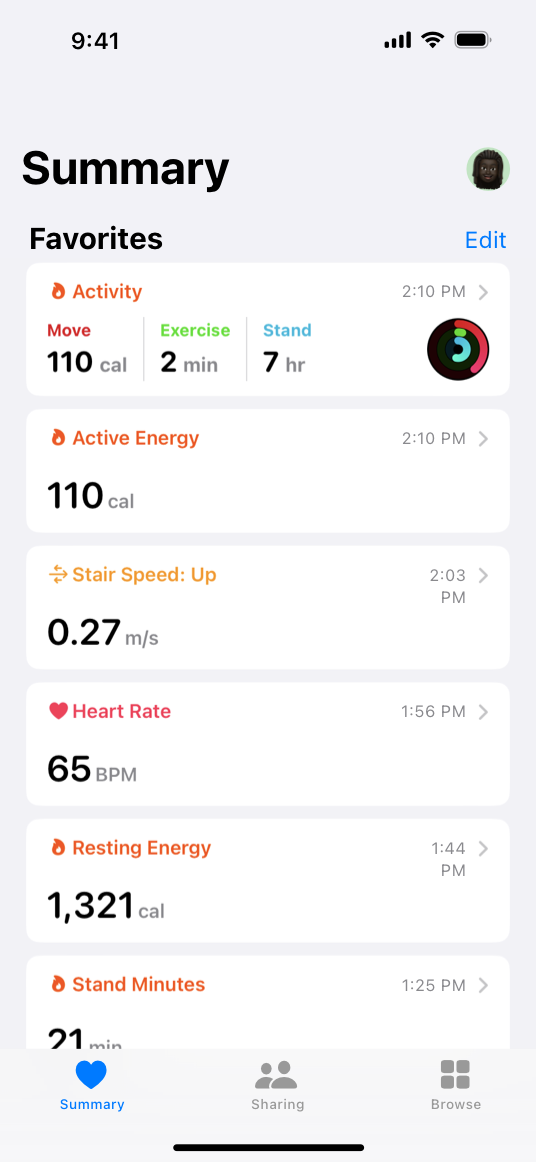
HealthKit is the central repository for health and fitness data in iOS, iPadOS, and watchOS.
 When you support HealthKit in your app, you can ask people for permission to access and update their health information.
Important
If your app doesn’t provide health and fitness functionality, don’t request access to people’s private health data.
For example, a nutrition app might ask for permission to retrieve people’s weight and activity data, so it can define calorie consumption goals and make dietary recommendations. In this scenario, the nutrition app could also send data — such as the calories that people log — to HealthKit, which can include the data in its global progress metrics.
When you support HealthKit in your app, you can ask people for permission to access and update their health information.
Important
If your app doesn’t provide health and fitness functionality, don’t request access to people’s private health data.
For example, a nutrition app might ask for permission to retrieve people’s weight and activity data, so it can define calorie consumption goals and make dietary recommendations. In this scenario, the nutrition app could also send data — such as the calories that people log — to HealthKit, which can include the data in its global progress metrics.
 For developer guidance, see HealthKit.
## Privacy protection
You must request permission to access people’s data, and you must take all necessary steps to protect that data. After you receive permission, it’s essential to maintain people’s trust by clearly showing them how you use their data. For developer guidance, see Protecting user privacy.
Provide a coherent privacy policy. During the app submission process, you must provide a URL to a clearly stated privacy policy, so that people can view the policy when they click the link in the App Store page for your app. For developer guidance, see App Information > App Store Connect Help.
Request access to health data only when you need it. It makes sense to request access to weight information when people log their weight, for example, but not immediately after your app launches. When your request is clearly related to the current context, you help people understand your app’s intentions. Also, people can change the permissions they grant, so your app needs to make a request every time it needs access. For developer guidance, see
For developer guidance, see HealthKit.
## Privacy protection
You must request permission to access people’s data, and you must take all necessary steps to protect that data. After you receive permission, it’s essential to maintain people’s trust by clearly showing them how you use their data. For developer guidance, see Protecting user privacy.
Provide a coherent privacy policy. During the app submission process, you must provide a URL to a clearly stated privacy policy, so that people can view the policy when they click the link in the App Store page for your app. For developer guidance, see App Information > App Store Connect Help.
Request access to health data only when you need it. It makes sense to request access to weight information when people log their weight, for example, but not immediately after your app launches. When your request is clearly related to the current context, you help people understand your app’s intentions. Also, people can change the permissions they grant, so your app needs to make a request every time it needs access. For developer guidance, see 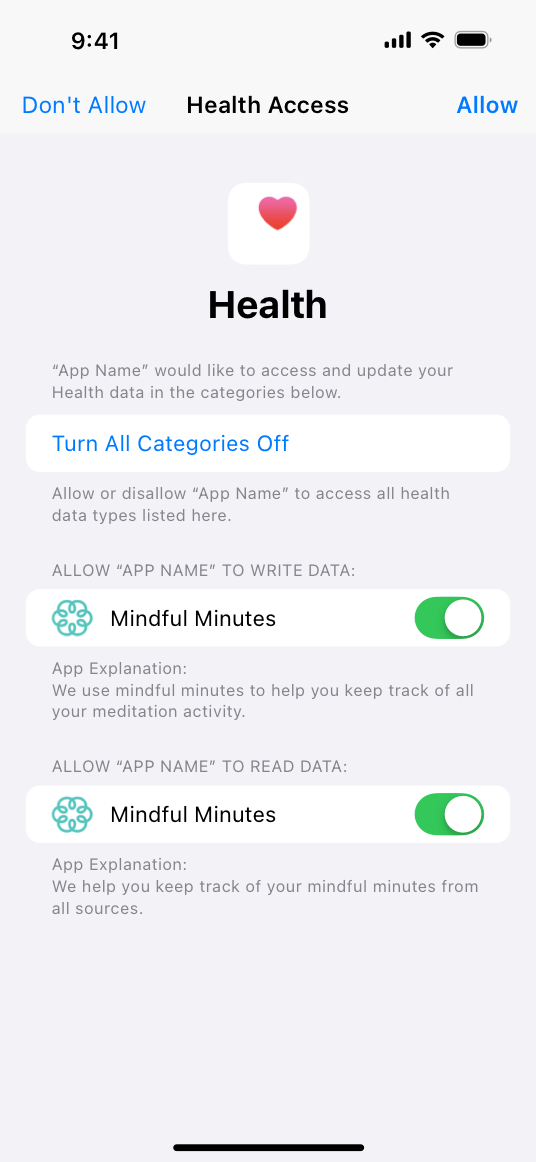 Manage health data sharing solely through the system’s privacy settings. People expect to globally manage access to their health information in Settings > Privacy. Don’t confuse people by building additional screens in your app that affect the flow of health data.
## Activity rings
You can enhance your app’s health and wellness offerings by displaying the Activity ring element to show people’s progress toward their Move, Exercise, and Stand goals. The Activity app defines the position and color of each ring, so people are familiar with the element and understand what it means.
Manage health data sharing solely through the system’s privacy settings. People expect to globally manage access to their health information in Settings > Privacy. Don’t confuse people by building additional screens in your app that affect the flow of health data.
## Activity rings
You can enhance your app’s health and wellness offerings by displaying the Activity ring element to show people’s progress toward their Move, Exercise, and Stand goals. The Activity app defines the position and color of each ring, so people are familiar with the element and understand what it means.
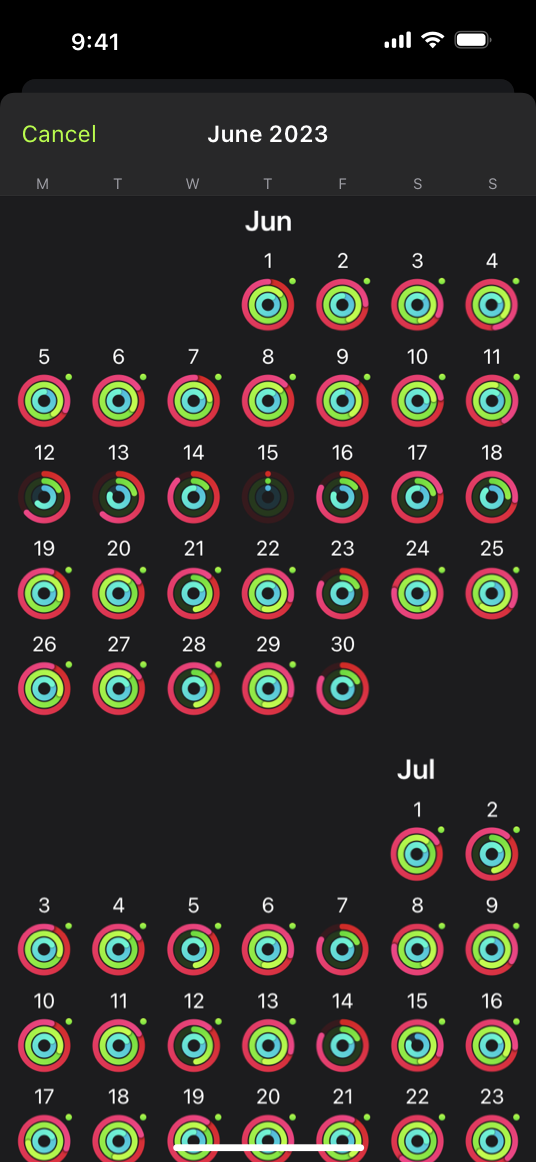 Use Activity rings for Move, Exercise, and Stand information only. Activity rings consistently represent progress in these specific areas. Don’t attempt to replicate or modify Activity rings for other purposes or to display other types of data. Never show Move, Exercise, and Stand progress in another ring-like element.
Use Activity rings to show progress for a single person. Never use Activity rings to represent data for more than one person, and make sure it’s obvious whose progress is shown, such as by using a label, a photo, or an avatar.
Don’t use Activity rings for ornamentation. Activity rings provide information to people; they don’t merely embellish your app’s design. Never display Activity rings in labels or background graphics.
Don’t use Activity rings for branding. Use Activity rings strictly to display Activity progress in your app. Never use Activity rings in your app’s icon or marketing materials.
Maintain Activity ring and background colors. For a consistent user experience, the visual appearance of Activity rings must always be the same, regardless of the context in which they appear. Never change the look of the rings or background by using filters, changing colors, or modifying opacity. Instead, design the surrounding interface to blend with the rings. For example, enclose the rings within a circle. Always scale the rings appropriately so they don’t seem disconnected or out of place.
Maintain Activity ring margins. An Activity ring element must include a minimum outer margin of no less than the distance between rings. Never allow other elements to crop, obstruct, or encroach upon this margin or the rings themselves. To display an Activity ring element within a circle, adjust the corner radius of the enclosing view rather than applying a circular mask.
Differentiate other ring-like elements from Activity rings. Mixing different ring styles can lead to a visually confusing interface. If you must include other rings, use padding, lines, or labels to separate them from Activity rings. Color and scale can also help provide visual separation.
Provide app-specific information only in Activity notifications. The system already delivers Move, Exercise, and Stand progress updates. Don’t repeat this same information, and never show an Activity ring element in your app’s notifications. It’s fine to reference Activity progress in a notification, but do so in a way that’s unique to your app and doesn’t replicate the same information provided by the system.
For developer guidance, see
Use Activity rings for Move, Exercise, and Stand information only. Activity rings consistently represent progress in these specific areas. Don’t attempt to replicate or modify Activity rings for other purposes or to display other types of data. Never show Move, Exercise, and Stand progress in another ring-like element.
Use Activity rings to show progress for a single person. Never use Activity rings to represent data for more than one person, and make sure it’s obvious whose progress is shown, such as by using a label, a photo, or an avatar.
Don’t use Activity rings for ornamentation. Activity rings provide information to people; they don’t merely embellish your app’s design. Never display Activity rings in labels or background graphics.
Don’t use Activity rings for branding. Use Activity rings strictly to display Activity progress in your app. Never use Activity rings in your app’s icon or marketing materials.
Maintain Activity ring and background colors. For a consistent user experience, the visual appearance of Activity rings must always be the same, regardless of the context in which they appear. Never change the look of the rings or background by using filters, changing colors, or modifying opacity. Instead, design the surrounding interface to blend with the rings. For example, enclose the rings within a circle. Always scale the rings appropriately so they don’t seem disconnected or out of place.
Maintain Activity ring margins. An Activity ring element must include a minimum outer margin of no less than the distance between rings. Never allow other elements to crop, obstruct, or encroach upon this margin or the rings themselves. To display an Activity ring element within a circle, adjust the corner radius of the enclosing view rather than applying a circular mask.
Differentiate other ring-like elements from Activity rings. Mixing different ring styles can lead to a visually confusing interface. If you must include other rings, use padding, lines, or labels to separate them from Activity rings. Color and scale can also help provide visual separation.
Provide app-specific information only in Activity notifications. The system already delivers Move, Exercise, and Stand progress updates. Don’t repeat this same information, and never show an Activity ring element in your app’s notifications. It’s fine to reference Activity progress in a notification, but do so in a way that’s unique to your app and doesn’t replicate the same information provided by the system.
For developer guidance, see 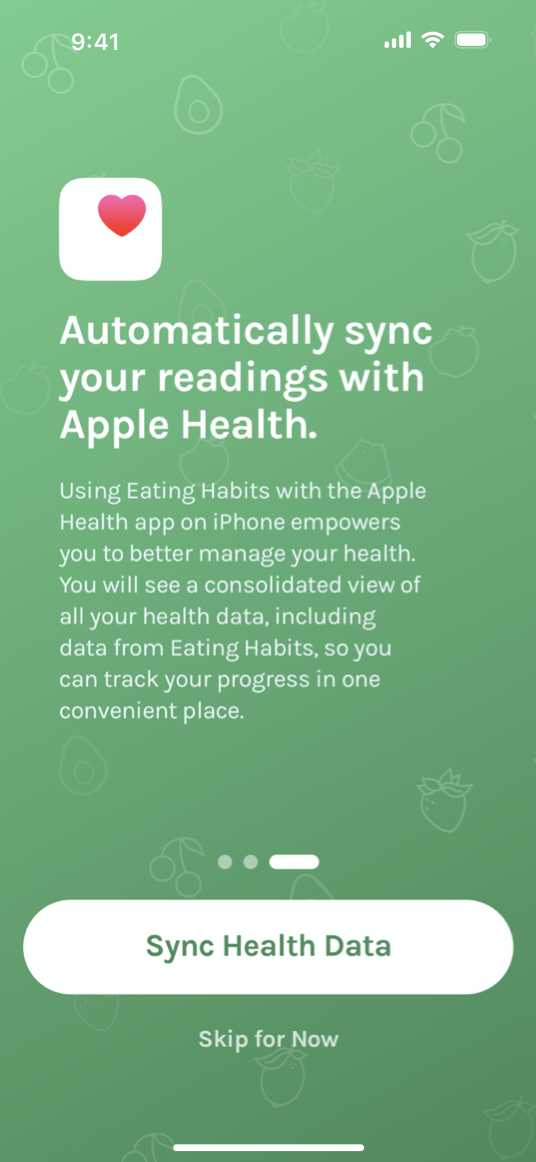 Use only the Apple-provided icon. Don’t create your own Apple Health icon design or attempt to mimic any Apple-provided designs. Download the Apple Health app icon from Apple Design Resources.
Display the name Apple Health close to the Apple Health icon. Displaying both elements near each other reminds people that the icon represents the Health app.
Display the Apple Health icon consistently with other health-related app icons. In a view that contains other app icons, make the Apple Health icon no smaller than other icons.
Don’t use the Apple Health icon as a button. Use the icon only to indicate compatibility with the Health app.
Don’t alter the appearance of the Apple Health icon. Don’t mask the icon to change its corner radius or present it in a circular shape. Don’t add embellishments like borders, color overlays, gradients, shadows, or other visual effects.
Maintain a minimum clear space around the Apple Health icon of 1/10 of its height. Don’t composite the icon onto another graphic element.
Don’t use the Apple Health icon within text or as a replacement for the terms Health , Apple Health , or HealthKit. See Editorial guidelines to learn how to properly reference the Health app and HealthKit in text.
Don’t display Health app images or screenshots. Like all Apple images, these designs are copyrighted and can’t appear in your app or marketing materials. You can include an Activity ring element in your app to display Move, Exercise, and Stand progress; for guidance, see Activity rings.
## Editorial guidelines
Refer to the Health app as Apple Health or the Apple Health app. In your app and marketing text, using Apple Health adds clarity.
Don’t use the term HealthKit. HealthKit is a developer-facing term that names the framework your app uses to access health data. If you need to explain to people how your app works with their data, use the term the Apple Health app. For example, you might say that your app “works with the Apple Health app” or “uses data from the Apple Health app.”
Use correct capitalization when using the term Apple Health. Apple Health is two words, with an uppercase A and uppercase H, followed by lowercase letters. You can display Apple Health entirely in uppercase only when you need to conform to an established typographic interface style, such as in an app that capitalizes all text.
Use the system-provided translation of Health to avoid confusing people. It’s best to refer to the Apple Health app using the translation that people view on their device.
## Platform considerations
No additional considerations for iOS, iPadOS, or watchOS. Not supported in macOS, tvOS, or visionOS.
## Resources
#### Related
Works with Apple Health
Activity rings
Apple Design Resources
#### Developer documentation
HealthKit
Protecting user privacy — HealthKit
#### Videos
Use only the Apple-provided icon. Don’t create your own Apple Health icon design or attempt to mimic any Apple-provided designs. Download the Apple Health app icon from Apple Design Resources.
Display the name Apple Health close to the Apple Health icon. Displaying both elements near each other reminds people that the icon represents the Health app.
Display the Apple Health icon consistently with other health-related app icons. In a view that contains other app icons, make the Apple Health icon no smaller than other icons.
Don’t use the Apple Health icon as a button. Use the icon only to indicate compatibility with the Health app.
Don’t alter the appearance of the Apple Health icon. Don’t mask the icon to change its corner radius or present it in a circular shape. Don’t add embellishments like borders, color overlays, gradients, shadows, or other visual effects.
Maintain a minimum clear space around the Apple Health icon of 1/10 of its height. Don’t composite the icon onto another graphic element.
Don’t use the Apple Health icon within text or as a replacement for the terms Health , Apple Health , or HealthKit. See Editorial guidelines to learn how to properly reference the Health app and HealthKit in text.
Don’t display Health app images or screenshots. Like all Apple images, these designs are copyrighted and can’t appear in your app or marketing materials. You can include an Activity ring element in your app to display Move, Exercise, and Stand progress; for guidance, see Activity rings.
## Editorial guidelines
Refer to the Health app as Apple Health or the Apple Health app. In your app and marketing text, using Apple Health adds clarity.
Don’t use the term HealthKit. HealthKit is a developer-facing term that names the framework your app uses to access health data. If you need to explain to people how your app works with their data, use the term the Apple Health app. For example, you might say that your app “works with the Apple Health app” or “uses data from the Apple Health app.”
Use correct capitalization when using the term Apple Health. Apple Health is two words, with an uppercase A and uppercase H, followed by lowercase letters. You can display Apple Health entirely in uppercase only when you need to conform to an established typographic interface style, such as in an app that capitalizes all text.
Use the system-provided translation of Health to avoid confusing people. It’s best to refer to the Apple Health app using the translation that people view on their device.
## Platform considerations
No additional considerations for iOS, iPadOS, or watchOS. Not supported in macOS, tvOS, or visionOS.
## Resources
#### Related
Works with Apple Health
Activity rings
Apple Design Resources
#### Developer documentation
HealthKit
Protecting user privacy — HealthKit
#### Videos
 Meet the HealthKit Medications API
 Track workouts with HealthKit on iOS and iPadOS
 Explore wellbeing APIs in HealthKit
When you support HealthKit in your app, you can ask people for permission to access and update their health information.
Important
If your app doesn’t provide health and fitness functionality, don’t request access to people’s private health data.
For example, a nutrition app might ask for permission to retrieve people’s weight and activity data, so it can define calorie consumption goals and make dietary recommendations. In this scenario, the nutrition app could also send data — such as the calories that people log — to HealthKit, which can include the data in its global progress metrics.
For developer guidance, see HealthKit.
## Privacy protection
You must request permission to access people’s data, and you must take all necessary steps to protect that data. After you receive permission, it’s essential to maintain people’s trust by clearly showing them how you use their data. For developer guidance, see Protecting user privacy.
Provide a coherent privacy policy. During the app submission process, you must provide a URL to a clearly stated privacy policy, so that people can view the policy when they click the link in the App Store page for your app. For developer guidance, see App Information > App Store Connect Help.
Request access to health data only when you need it. It makes sense to request access to weight information when people log their weight, for example, but not immediately after your app launches. When your request is clearly related to the current context, you help people understand your app’s intentions. Also, people can change the permissions they grant, so your app needs to make a request every time it needs access. For developer guidance, see requestAuthorization(toShare:read:completion:).
Clarify your app’s intent by adding descriptive messages to the standard permission screen. People expect to see the system-provided permission screen when asked to approve access to health data. Write a few succinct sentences that explain why you need the information and how people can benefit from sharing it with your app. Avoid adding custom screens that replicate the standard permission screen’s behavior or content.
Manage health data sharing solely through the system’s privacy settings. People expect to globally manage access to their health information in Settings > Privacy. Don’t confuse people by building additional screens in your app that affect the flow of health data.
## Activity rings
You can enhance your app’s health and wellness offerings by displaying the Activity ring element to show people’s progress toward their Move, Exercise, and Stand goals. The Activity app defines the position and color of each ring, so people are familiar with the element and understand what it means.
Use Activity rings for Move, Exercise, and Stand information only. Activity rings consistently represent progress in these specific areas. Don’t attempt to replicate or modify Activity rings for other purposes or to display other types of data. Never show Move, Exercise, and Stand progress in another ring-like element.
Use Activity rings to show progress for a single person. Never use Activity rings to represent data for more than one person, and make sure it’s obvious whose progress is shown, such as by using a label, a photo, or an avatar.
Don’t use Activity rings for ornamentation. Activity rings provide information to people; they don’t merely embellish your app’s design. Never display Activity rings in labels or background graphics.
Don’t use Activity rings for branding. Use Activity rings strictly to display Activity progress in your app. Never use Activity rings in your app’s icon or marketing materials.
Maintain Activity ring and background colors. For a consistent user experience, the visual appearance of Activity rings must always be the same, regardless of the context in which they appear. Never change the look of the rings or background by using filters, changing colors, or modifying opacity. Instead, design the surrounding interface to blend with the rings. For example, enclose the rings within a circle. Always scale the rings appropriately so they don’t seem disconnected or out of place.
Maintain Activity ring margins. An Activity ring element must include a minimum outer margin of no less than the distance between rings. Never allow other elements to crop, obstruct, or encroach upon this margin or the rings themselves. To display an Activity ring element within a circle, adjust the corner radius of the enclosing view rather than applying a circular mask.
Differentiate other ring-like elements from Activity rings. Mixing different ring styles can lead to a visually confusing interface. If you must include other rings, use padding, lines, or labels to separate them from Activity rings. Color and scale can also help provide visual separation.
Provide app-specific information only in Activity notifications. The system already delivers Move, Exercise, and Stand progress updates. Don’t repeat this same information, and never show an Activity ring element in your app’s notifications. It’s fine to reference Activity progress in a notification, but do so in a way that’s unique to your app and doesn’t replicate the same information provided by the system.
For developer guidance, see HKActivityRingView.
## Apple Health icon
The Apple Health icon shows that an app works with HealthKit and the Health app. The following guidelines help you use the icon correctly. To learn how to refer to HealthKit and the Health app in copy and UI text, see Editorial guidelines; to learn about using the “Works with Apple Health” badge in your marketing communications, see Works with Apple Health.
Use only the Apple-provided icon. Don’t create your own Apple Health icon design or attempt to mimic any Apple-provided designs. Download the Apple Health app icon from Apple Design Resources.
Display the name Apple Health close to the Apple Health icon. Displaying both elements near each other reminds people that the icon represents the Health app.
Display the Apple Health icon consistently with other health-related app icons. In a view that contains other app icons, make the Apple Health icon no smaller than other icons.
Don’t use the Apple Health icon as a button. Use the icon only to indicate compatibility with the Health app.
Don’t alter the appearance of the Apple Health icon. Don’t mask the icon to change its corner radius or present it in a circular shape. Don’t add embellishments like borders, color overlays, gradients, shadows, or other visual effects.
Maintain a minimum clear space around the Apple Health icon of 1/10 of its height. Don’t composite the icon onto another graphic element.
Don’t use the Apple Health icon within text or as a replacement for the terms Health , Apple Health , or HealthKit. See Editorial guidelines to learn how to properly reference the Health app and HealthKit in text.
Don’t display Health app images or screenshots. Like all Apple images, these designs are copyrighted and can’t appear in your app or marketing materials. You can include an Activity ring element in your app to display Move, Exercise, and Stand progress; for guidance, see Activity rings.
## Editorial guidelines
Refer to the Health app as Apple Health or the Apple Health app. In your app and marketing text, using Apple Health adds clarity.
Don’t use the term HealthKit. HealthKit is a developer-facing term that names the framework your app uses to access health data. If you need to explain to people how your app works with their data, use the term the Apple Health app. For example, you might say that your app “works with the Apple Health app” or “uses data from the Apple Health app.”
Use correct capitalization when using the term Apple Health. Apple Health is two words, with an uppercase A and uppercase H, followed by lowercase letters. You can display Apple Health entirely in uppercase only when you need to conform to an established typographic interface style, such as in an app that capitalizes all text.
Use the system-provided translation of Health to avoid confusing people. It’s best to refer to the Apple Health app using the translation that people view on their device.
## Platform considerations
No additional considerations for iOS, iPadOS, or watchOS. Not supported in macOS, tvOS, or visionOS.
## Resources
#### Related
Works with Apple Health
Activity rings
Apple Design Resources
#### Developer documentation
HealthKit
Protecting user privacy — HealthKit
#### Videos
Meet the HealthKit Medications API
Track workouts with HealthKit on iOS and iPadOS
Explore wellbeing APIs in HealthKit