
93 lines
7.0 KiB
Markdown
93 lines
7.0 KiB
Markdown
---
|
||
title: "Labels | Apple Developer Documentation"
|
||
source: https://developer.apple.com/design/human-interface-guidelines/labels
|
||
|
||
# Labels
|
||
|
||
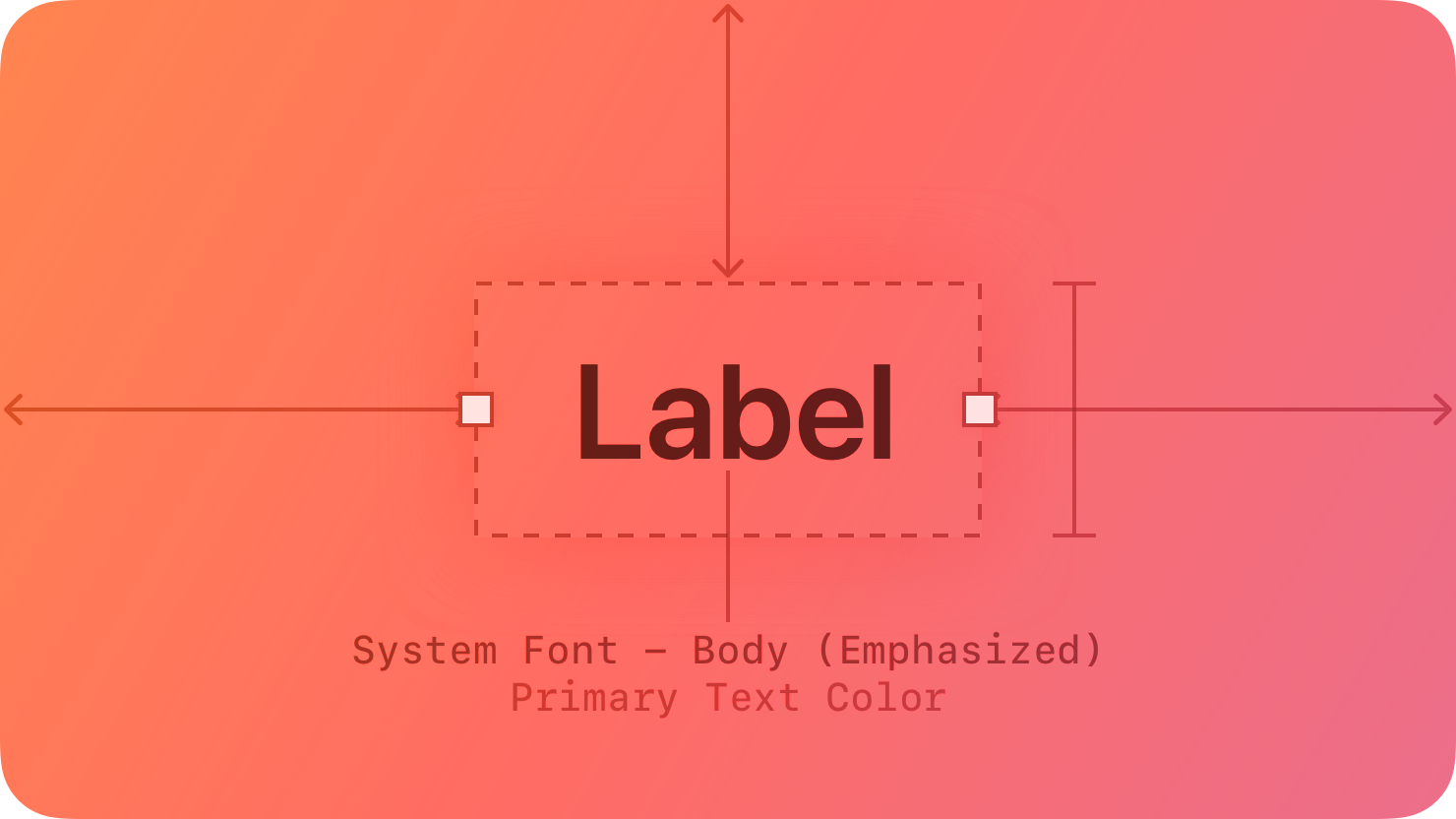
A label is a static piece of text that people can read and often copy, but not edit.
|
||
|
||
|
||
|
||
Labels display text throughout the interface, in buttons, menu items, and views, helping people understand the current context and what they can do next.
|
||
|
||
The term _label_ refers to uneditable text that can appear in various places. For example:
|
||
|
||
* Within a button, a label generally conveys what the button does, such as Edit, Cancel, or Send.
|
||
|
||
* Within many lists, a label can describe each item, often accompanied by a symbol or an image.
|
||
|
||
* Within a view, a label might provide additional context by introducing a control or describing a common action or task that people can perform in the view.
|
||
|
||
|
||
|
||
|
||
Developer note
|
||
|
||
To display uneditable text, SwiftUI defines two components: [`Label`](https://developer.apple.com/documentation/SwiftUI/Label) and [`Text`](https://developer.apple.com/documentation/SwiftUI/Text).
|
||
|
||
The guidance below can help you use a label to display text. In some cases, guidance for specific components — such as [action buttons](https://developer.apple.com/design/human-interface-guidelines/buttons), [menus](https://developer.apple.com/design/human-interface-guidelines/menus), and [lists and tables](https://developer.apple.com/design/human-interface-guidelines/lists-and-tables) — includes additional recommendations for using text.
|
||
|
||
## [Best practices](https://developer.apple.com/design/human-interface-guidelines/labels#Best-practices)
|
||
|
||
**Use a label to display a small amount of text that people don’t need to edit.** If you need to let people edit a small amount of text, use a [text field](https://developer.apple.com/design/human-interface-guidelines/text-fields). If you need to display a large amount of text, and optionally let people edit it, use a [text view](https://developer.apple.com/design/human-interface-guidelines/text-views).
|
||
|
||
**Prefer system fonts.** A label can display plain or styled text, and it supports Dynamic Type (where available) by default. If you adjust the style of a label or use custom fonts, make sure the text remains legible.
|
||
|
||
**Use system-provided label colors to communicate relative importance.** The system defines four label colors that vary in appearance to help you give text different levels of visual importance. For additional guidance, see [Color](https://developer.apple.com/design/human-interface-guidelines/color).
|
||
|
||
System color| Example usage| iOS, iPadOS, tvOS, visionOS| macOS
|
||
---|---|---|---
|
||
Label| Primary information| [`label`](https://developer.apple.com/documentation/UIKit/UIColor/label)| [`labelColor`](https://developer.apple.com/documentation/AppKit/NSColor/labelColor)
|
||
Secondary label| A subheading or supplemental text| [`secondaryLabel`](https://developer.apple.com/documentation/UIKit/UIColor/secondaryLabel)| [`secondaryLabelColor`](https://developer.apple.com/documentation/AppKit/NSColor/secondaryLabelColor)
|
||
Tertiary label| Text that describes an unavailable item or behavior| [`tertiaryLabel`](https://developer.apple.com/documentation/UIKit/UIColor/tertiaryLabel)| [`tertiaryLabelColor`](https://developer.apple.com/documentation/AppKit/NSColor/tertiaryLabelColor)
|
||
Quaternary label| Watermark text| [`quaternaryLabel`](https://developer.apple.com/documentation/UIKit/UIColor/quaternaryLabel)| [`quaternaryLabelColor`](https://developer.apple.com/documentation/AppKit/NSColor/quaternaryLabelColor)
|
||
|
||
**Make useful label text selectable.** If a label contains useful information — like an error message, a location, or an IP address — consider letting people select and copy it for pasting elsewhere.
|
||
|
||
## [Platform considerations](https://developer.apple.com/design/human-interface-guidelines/labels#Platform-considerations)
|
||
|
||
_No additional considerations for iOS, iPadOS, tvOS, or visionOS._
|
||
|
||
### [macOS](https://developer.apple.com/design/human-interface-guidelines/labels#macOS)
|
||
|
||
Developer note
|
||
|
||
To display uneditable text in a label, use the [`isEditable`](https://developer.apple.com/documentation/AppKit/NSTextField/isEditable) property of [`NSTextField`](https://developer.apple.com/documentation/AppKit/NSTextField).
|
||
|
||
### [watchOS](https://developer.apple.com/design/human-interface-guidelines/labels#watchOS)
|
||
|
||
Date and time text components (shown below on the left) display the current date, the current time, or a combination of both. You can configure a date text component to use a variety of formats, calendars, and time zones. A countdown timer text component (shown below on the right) displays a precise countdown or count-up timer. You can configure a timer text component to display its count value in a variety of formats.
|
||
|
||
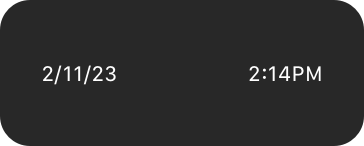Date and time labels
|
||
|
||
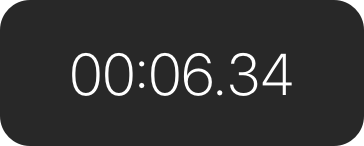Timer label
|
||
|
||
When you use the system-provided date and timer text components, watchOS automatically adjusts the label’s presentation to fit the available space. The system also updates the content without further input from your app.
|
||
|
||
Consider using date and timer components in complications. For design guidance, see [Complications](https://developer.apple.com/design/human-interface-guidelines/components/system-experiences/complications); for developer guidance, see [`Text`](https://developer.apple.com/documentation/SwiftUI/Text).
|
||
|
||
## [Resources](https://developer.apple.com/design/human-interface-guidelines/labels#Resources)
|
||
|
||
#### [Related](https://developer.apple.com/design/human-interface-guidelines/labels#Related)
|
||
|
||
[Text fields](https://developer.apple.com/design/human-interface-guidelines/text-fields)
|
||
|
||
[Text views](https://developer.apple.com/design/human-interface-guidelines/text-views)
|
||
|
||
#### [Developer documentation](https://developer.apple.com/design/human-interface-guidelines/labels#Developer-documentation)
|
||
|
||
[`Label`](https://developer.apple.com/documentation/SwiftUI/Label) — SwiftUI
|
||
|
||
[`Text`](https://developer.apple.com/documentation/SwiftUI/Text) — SwiftUI
|
||
|
||
[`UILabel`](https://developer.apple.com/documentation/UIKit/UILabel) — UIKit
|
||
|
||
[`NSTextField`](https://developer.apple.com/documentation/AppKit/NSTextField) — AppKit
|
||
|
||
## [Change log](https://developer.apple.com/design/human-interface-guidelines/labels#Change-log)
|
||
|
||
Date| Changes
|
||
---|---
|
||
June 5, 2023| Updated guidance to reflect changes in watchOS 10.
|
||
|