
158 lines
17 KiB
Markdown
158 lines
17 KiB
Markdown
---
|
||
title: "Sheets | Apple Developer Documentation"
|
||
source: https://developer.apple.com/design/human-interface-guidelines/sheets
|
||
|
||
# Sheets
|
||
|
||
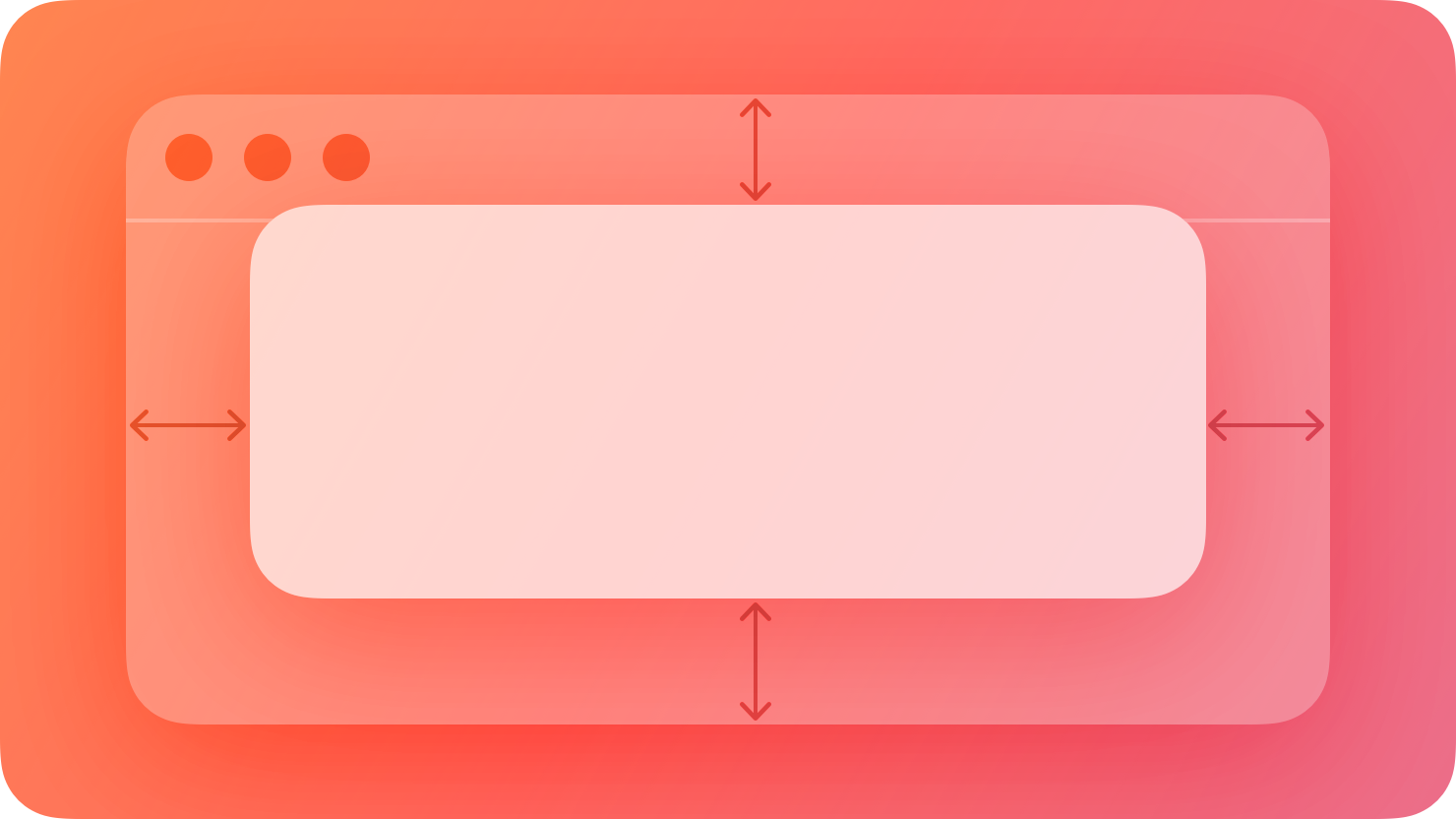
A sheet helps people perform a scoped task that’s closely related to their current context.
|
||
|
||
|
||
|
||
By default, a sheet is _modal_ , presenting a targeted experience that prevents people from interacting with the parent view until they dismiss the sheet (for more on modal presentation, see [Modality](https://developer.apple.com/design/human-interface-guidelines/modality)). A modal sheet is useful for requesting specific information from people or presenting a simple task that they can complete before returning to the parent view. For example, a sheet might let people supply information needed to complete an action, such as attaching a file, choosing the location for a move or save, or specifying the format for a selection.
|
||
|
||
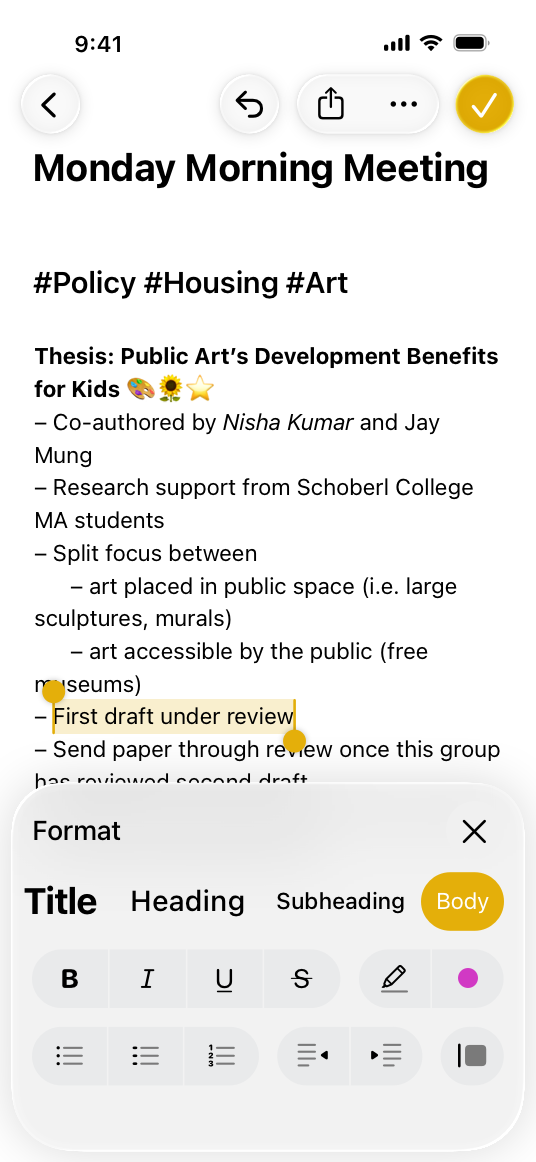
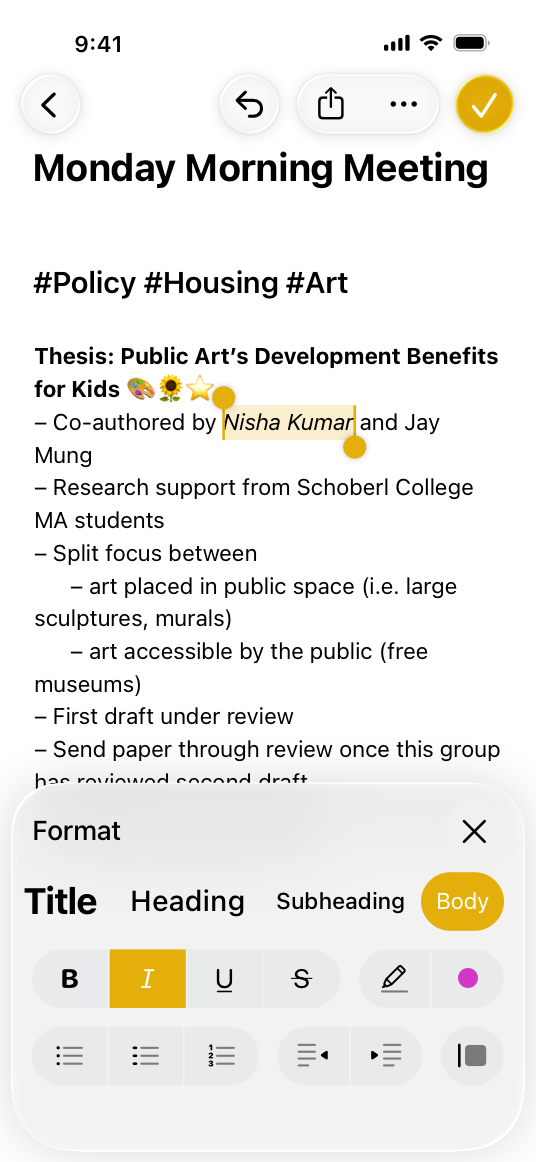
In macOS, visionOS, and watchOS, a sheet is always modal, but in iOS and iPadOS, a sheet can also be nonmodal. When a nonmodal sheet is onscreen, people use its functionality to directly affect the current task in the parent view without dismissing the sheet. For example, Notes on iPhone and iPad uses a nonmodal sheet to help people apply different formatting to various text selections as they edit a note.
|
||
|
||
|
||
|
||
The Notes format sheet lets people apply formatting to selected text in the editing view.
|
||
|
||
|
||
|
||
Because the sheet is nonmodal, people can make additional text selections without dismissing the sheet.
|
||
|
||
## [Best practices](https://developer.apple.com/design/human-interface-guidelines/sheets#Best-practices)
|
||
|
||
**Use a sheet to present simple content or tasks.** A sheet allows some of the parent view to remain visible, helping people retain their original context as they interact with the sheet.
|
||
|
||
**For complex or prolonged user flows, consider alternatives to sheets.** For example, iOS and iPadOS offer a full-screen style of modal view that can work well to display content like videos, photos, or camera views or to help people perform multistep tasks like document or photo editing. (For developer guidance, see [`UIModalPresentationStyle.fullScreen`](https://developer.apple.com/documentation/UIKit/UIModalPresentationStyle/fullScreen).) In a macOS experience, you might want to open a new window or let people enter full-screen mode instead of using a sheet. For example, a self-contained task like editing a document tends to work well in a separate window, whereas [going full screen](https://developer.apple.com/design/human-interface-guidelines/going-full-screen) can help people view media. In visionOS, you can give people a way to transition your app to a Full Space where they can dive into content or a task; for guidance, see [Immersive experiences](https://developer.apple.com/design/human-interface-guidelines/immersive-experiences).
|
||
|
||
**Display only one sheet at a time from the main interface.** When people close a sheet, they expect to return to the parent view or window. If closing a sheet takes people back to another sheet, they can lose track of where they are in your app. If something people do within a sheet results in another sheet appearing, close the first sheet before displaying the new one. If necessary, you can display the first sheet again after people dismiss the second one.
|
||
|
||
**Use a nonmodal view when you want to present supplementary items that affect the main task in the parent view.** To give people access to information and actions they need while continuing to interact with the main window, consider using a [split view](https://developer.apple.com/design/human-interface-guidelines/split-views) in visionOS or a [panel](https://developer.apple.com/design/human-interface-guidelines/panels) in macOS; in iOS and iPadOS, you can use a nonmodal sheet for this workflow. For guidance, see [iOS, iPadOS](https://developer.apple.com/design/human-interface-guidelines/sheets#iOS-iPadOS).
|
||
|
||
## [Platform considerations](https://developer.apple.com/design/human-interface-guidelines/sheets#Platform-considerations)
|
||
|
||
_No additional considerations for tvOS._
|
||
|
||
### [iOS, iPadOS](https://developer.apple.com/design/human-interface-guidelines/sheets#iOS-iPadOS)
|
||
|
||
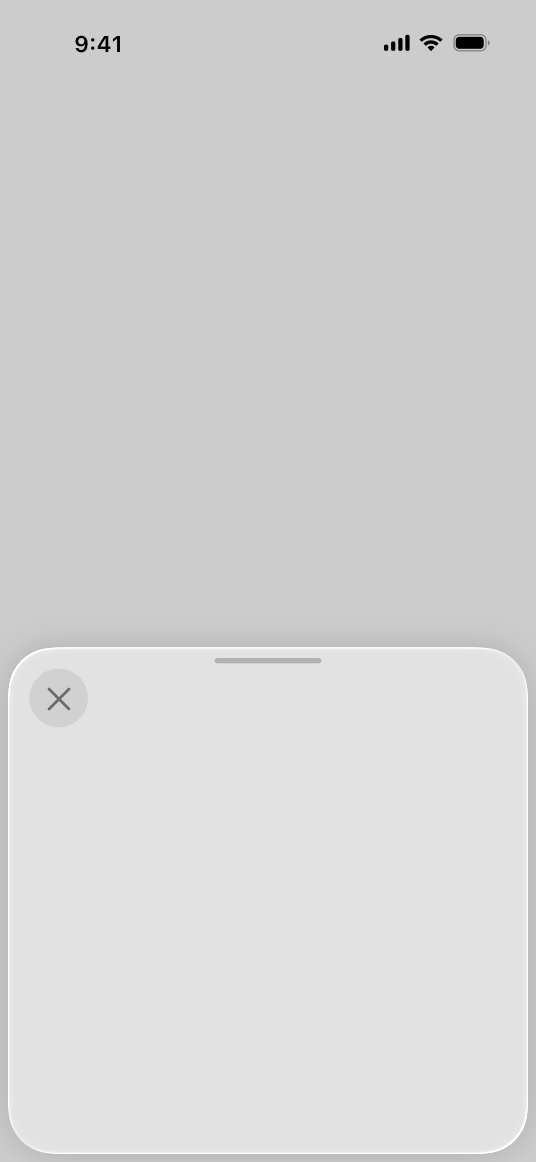
A resizable sheet expands when people scroll its contents or drag the _grabber_ , which is a small horizontal indicator that can appear at the top edge of a sheet. Sheets resize according to their _detents_ , which are particular heights at which a sheet naturally rests. Designed for iPhone, detents specify particular heights at which a sheet naturally rests. The system defines two detents: _large_ is the height of a fully expanded sheet and _medium_ is about half of the fully expanded height.
|
||
|
||

|
||
|
||
Large detent
|
||
|
||
|
||
|
||
Medium detent
|
||
|
||
Sheets automatically support the large detent. Adding the medium detent allows the sheet to rest at both heights, whereas specifying only medium prevents the sheet from expanding to full height. For developer guidance, see [`detents`](https://developer.apple.com/documentation/UIKit/UISheetPresentationController/detents).
|
||
|
||
**In an iPhone app, consider supporting the medium detent to allow progressive disclosure of the sheet’s content.** For example, a share sheet displays the most relevant items within the medium detent, where they’re visible without resizing. To view more items, people can scroll or expand the sheet. In contrast, you might not want to support the medium detent if a sheet’s content is more useful when it displays at full height. For example, the compose sheets in Messages and Mail display only at full height to give people enough room to create content.
|
||
|
||
**Include a grabber in a resizable sheet.** A grabber shows people that they can drag the sheet to resize it; they can also tap it to cycle through the detents. In addition to providing a visual indicator of resizability, a grabber also works with VoiceOver so people can resize the sheet without seeing the screen. For developer guidance, see [`prefersGrabberVisible`](https://developer.apple.com/documentation/UIKit/UISheetPresentationController/prefersGrabberVisible).
|
||
|
||
**Support swiping to dismiss a sheet.** People expect to swipe vertically to dismiss a sheet instead of tapping a dismiss button. If people have unsaved changes in the sheet when they begin swiping to dismiss it, use an action sheet to let them confirm their action.
|
||
|
||
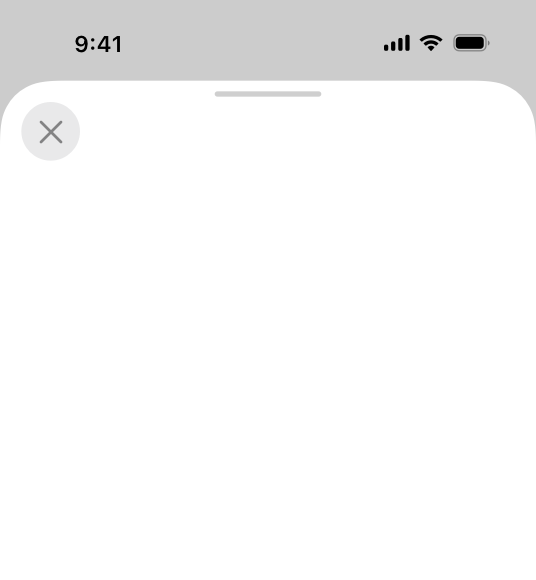
**Position Done and Cancel buttons as people expect.** Typically, a Done or Dismiss button belongs in a sheet’s top-right corner in a left-to-right layout. The Cancel button belongs in a sheet’s top-left corner.
|
||
|
||
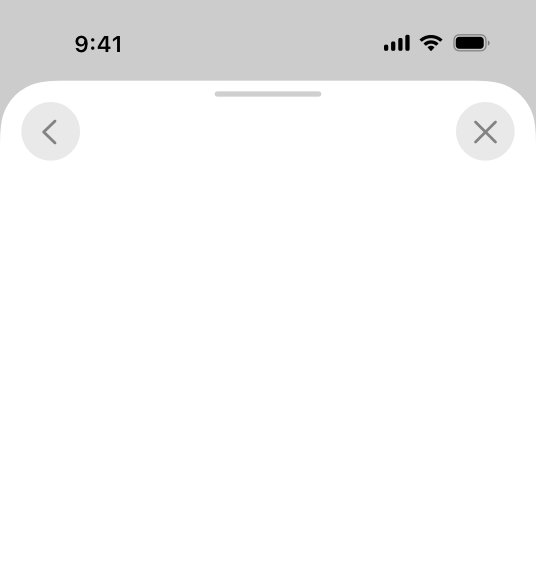
The exception to this is for sheets with additional subviews, where the Cancel button belongs in the top-right; this provides room for the Back button in the top-left on pages after the first. At the end of the navigation flow, replace the Cancel button with the Done button.
|
||
|
||
|
||
|
||
Placement of the Cancel button when it appears by itself
|
||
|
||
|
||
|
||
Placement of the Cancel button when it appears as part of a multi-step flow
|
||
|
||
**Prefer using the page or form sheet presentation styles in an iPadOS app.** Each style uses a default size for the sheet, centering its content on top of a dimmed background view and providing a consistent experience. For developer guidance, see [`UIModalPresentationStyle`](https://developer.apple.com/documentation/UIKit/UIModalPresentationStyle).
|
||
|
||
### [macOS](https://developer.apple.com/design/human-interface-guidelines/sheets#macOS)
|
||
|
||
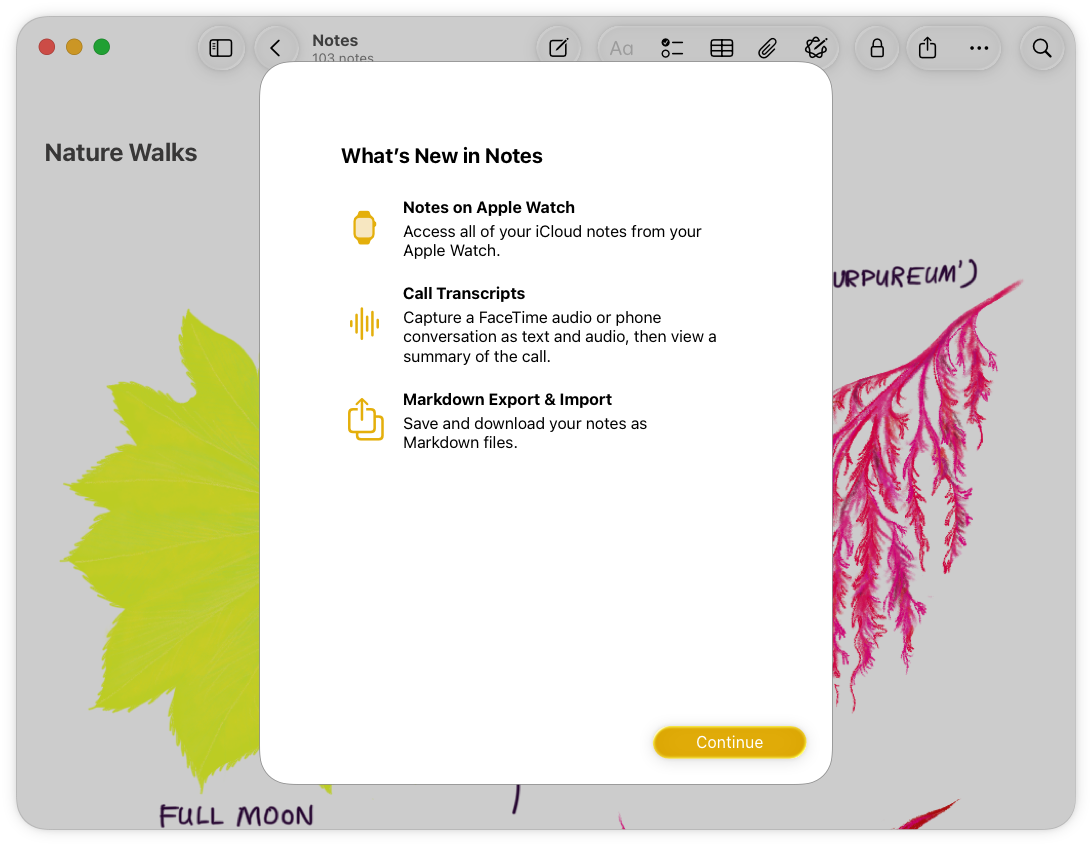
In macOS, a sheet is a cardlike view with rounded corners that floats on top of its parent window. The parent window is dimmed while the sheet is onscreen, signaling that people can’t interact with it until they dismiss the sheet. However, people expect to interact with other app windows before dismissing a sheet.
|
||
|
||
|
||
|
||
**Present a sheet in a reasonable default size.** People don’t generally expect to resize sheets, so it’s important to use a size that’s appropriate for the content you display. In some cases, however, people appreciate a resizable sheet — such as when they need to expand the contents for a clearer view — so it’s a good idea to support resizing.
|
||
|
||
**Let people interact with other app windows without first dismissing a sheet.** When a sheet opens, you bring its parent window to the front — if the parent window is a document window, you also bring forward its modeless document-related panels. When people want to interact with other windows in your app, make sure they can bring those windows forward even if they haven’t dismissed the sheet yet.
|
||
|
||
**Position a sheet’s dismiss buttons as people expect.** People expect to find all buttons that dismiss a sheet — including Done, OK, and Cancel — at the bottom of the view, in the trailing corner.
|
||
|
||
**Use a panel instead of a sheet if people need to repeatedly provide input and observe results.** A find and replace panel, for example, might let people initiate replacements individually, so they can observe the result of each search for correctness. For guidance, see [Panels](https://developer.apple.com/design/human-interface-guidelines/panels).
|
||
|
||
### [visionOS](https://developer.apple.com/design/human-interface-guidelines/sheets#visionOS)
|
||
|
||
While a sheet is visible in a visionOS app, it floats in front of its parent window, dimming it, and becoming the target of people’s interactions with the app.
|
||
|
||
Video with custom controls.
|
||
|
||
Content description: A recording showing a sheet opening above a blank window in visionOS.
|
||
|
||
Play
|
||
|
||
**Avoid displaying a sheet that emerges from the bottom edge of a window.** To help people view the sheet, prefer centering it in their [field of view](https://developer.apple.com/design/human-interface-guidelines/spatial-layout#Field-of-view).
|
||
|
||
**Present a sheet in a default size that helps people retain their context.** Avoid displaying a sheet that covers most or all of its window, but consider letting people resize the sheet if they want.
|
||
|
||
### [watchOS](https://developer.apple.com/design/human-interface-guidelines/sheets#watchOS)
|
||
|
||
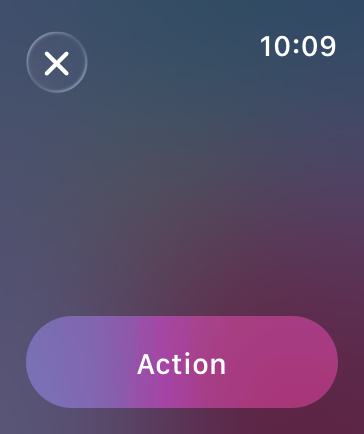
In watchOS, a sheet is a full-screen view that slides over your app’s current content. The sheet is semitransparent to help maintain the current context, but the system applies a material to the background that blurs and desaturates the covered content.
|
||
|
||
|
||
|
||
**Use a sheet only when your modal task requires a custom title or custom content presentation.** If you need to give people important information or present a set of choices, consider using an [alert](https://developer.apple.com/design/human-interface-guidelines/alerts) or [action sheet](https://developer.apple.com/design/human-interface-guidelines/action-sheets).
|
||
|
||
**Keep sheet interactions brief and occasional.** Use a sheet only as a temporary interruption to the current workflow, and only to facilitate an important task. Avoid using a sheet to help people navigate your app’s content.
|
||
|
||
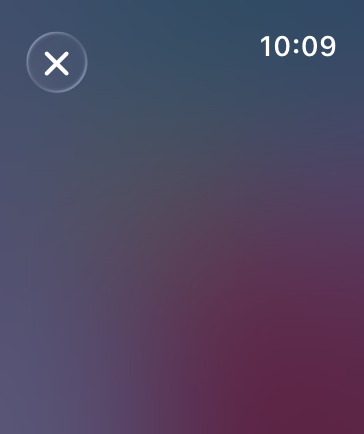
**Change the default label of the dismiss control only if it makes sense in your app.** By default, the sheet displays a round Cancel button in the upper left corner. Use this button when the sheet lets people make changes to the app’s behavior or to their data. If your sheet simply presents information without enabling a task, use the standard Done button instead. You can use a [toolbar](https://developer.apple.com/design/human-interface-guidelines/toolbars) to display multiple buttons.
|
||
|
||

|
||
|
||
The standard Done button
|
||
|
||
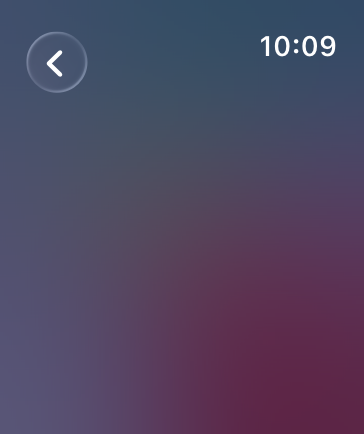
**If you change the default label, prefer using SF Symbols to represent the action.** Avoid using a label that might mislead people into thinking that the sheet is part of a hierarchical navigation interface. Also, if the text in the top-leading corner looks like a page or app title, people won’t know how to dismiss the sheet. For guidance, see [Standard icons](https://developer.apple.com/design/human-interface-guidelines/icons#Standard-icons).
|
||
|
||
|
||
|
||

|
||
|
||
|
||
|
||

|
||
|
||

|
||
|
||

|
||
|
||
## [Resources](https://developer.apple.com/design/human-interface-guidelines/sheets#Resources)
|
||
|
||
#### [Related](https://developer.apple.com/design/human-interface-guidelines/sheets#Related)
|
||
|
||
[Modality](https://developer.apple.com/design/human-interface-guidelines/modality)
|
||
|
||
[Action sheets](https://developer.apple.com/design/human-interface-guidelines/action-sheets)
|
||
|
||
[Popovers](https://developer.apple.com/design/human-interface-guidelines/popovers)
|
||
|
||
[Panels](https://developer.apple.com/design/human-interface-guidelines/panels)
|
||
|
||
#### [Developer documentation](https://developer.apple.com/design/human-interface-guidelines/sheets#Developer-documentation)
|
||
|
||
[`sheet(item:onDismiss:content:)`](https://developer.apple.com/documentation/SwiftUI/View/sheet\(item:onDismiss:content:\)) — SwiftUI
|
||
|
||
[`UISheetPresentationController`](https://developer.apple.com/documentation/UIKit/UISheetPresentationController) — UIKit
|
||
|
||
[`presentAsSheet(_:)`](https://developer.apple.com/documentation/AppKit/NSViewController/presentAsSheet\(_:\)) — AppKit
|
||
|
||
## [Change log](https://developer.apple.com/design/human-interface-guidelines/sheets#Change-log)
|
||
|
||
Date| Changes
|
||
---|---
|
||
March 29, 2024| Added guidance to use form or page sheet styles in iPadOS apps.
|
||
December 5, 2023| Recommended using a split view to offer supplementary items in a visionOS app.
|
||
June 21, 2023| Updated to include guidance for visionOS.
|
||
June 5, 2023| Updated guidance for using sheets in watchOS.
|
||
|