
41 lines
3.1 KiB
Markdown
41 lines
3.1 KiB
Markdown
---
|
||
title: "Path controls | Apple Developer Documentation"
|
||
source: https://developer.apple.com/design/human-interface-guidelines/path-controls
|
||
|
||
# Path controls
|
||
|
||
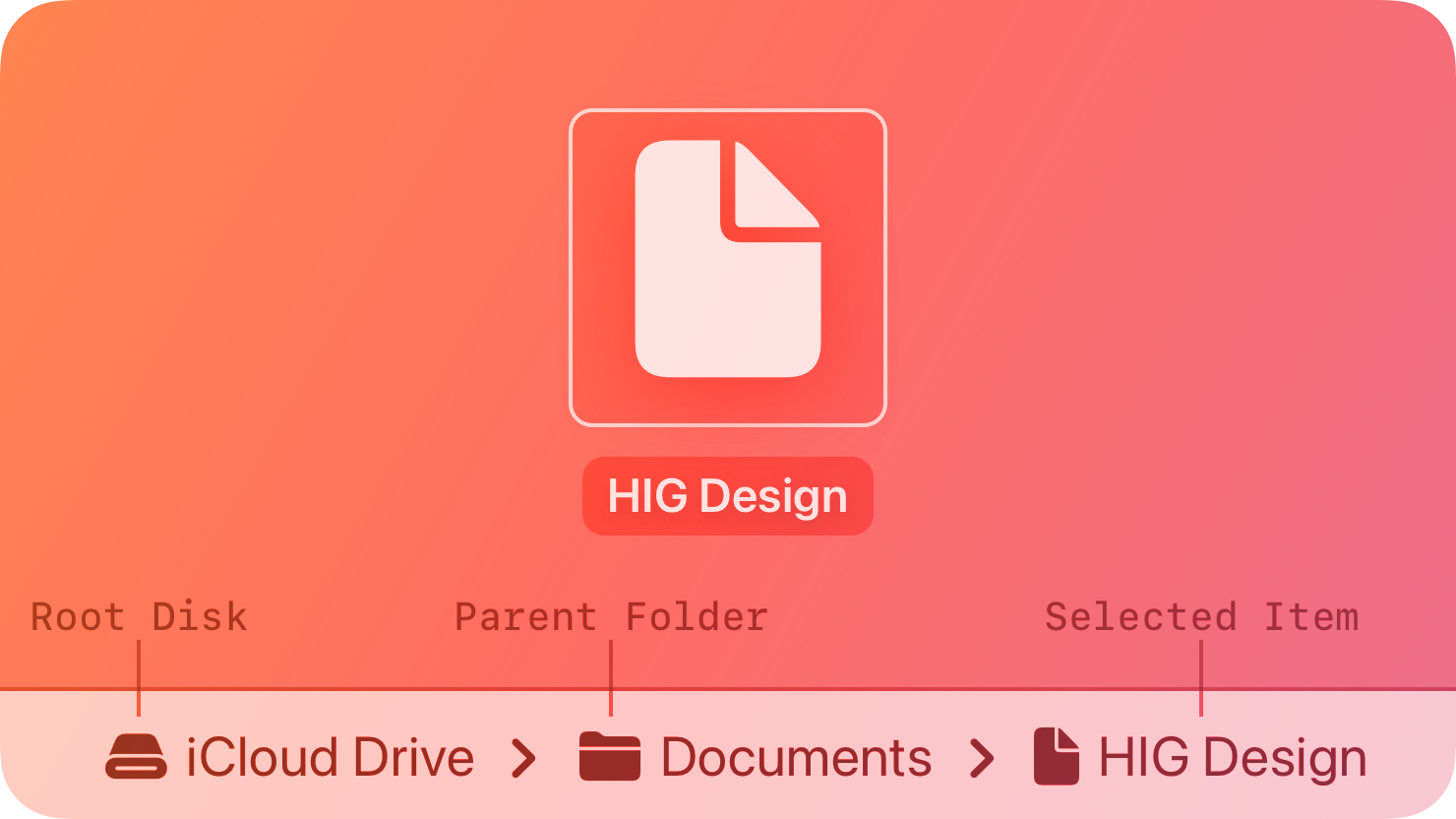
A path control shows the file system path of a selected file or folder.
|
||
|
||
|
||
|
||
For example, choosing View > Show Path Bar in the Finder displays a path bar at the bottom of the window. It shows the path of the selected item, or the path of the window’s folder if nothing is selected.
|
||
|
||
There are two styles of path control.
|
||
|
||

|
||
|
||
**Standard.** A linear list that includes the root disk, parent folders, and selected item. Each item appears with an icon and a name. If the list is too long to fit within the control, it hides names between the first and last items. If you make the control editable, people can drag an item onto the control to select the item and display its path in the control.
|
||
|
||

|
||
|
||
**Pop up.** A control similar to a [pop-up button](https://developer.apple.com/design/human-interface-guidelines/pop-up-buttons) that shows the icon and name of the selected item. People can click the item to open a menu containing the root disk, parent folders, and selected item. If you make the control editable, the menu contains an additional Choose command that people can use to select an item and display it in the control. They can also drag an item onto the control to select it and display its path.
|
||
|
||
## [Best practices](https://developer.apple.com/design/human-interface-guidelines/path-controls#Best-practices)
|
||
|
||
**Use a path control in the window body, not the window frame.** Path controls aren’t intended for use in toolbars or status bars. Note that the path control in the Finder appears at the bottom of the window body, not in the status bar.
|
||
|
||
## [Platform considerations](https://developer.apple.com/design/human-interface-guidelines/path-controls#Platform-considerations)
|
||
|
||
_Not supported in iOS, iPadOS, tvOS, visionOS, or watchOS._
|
||
|
||
## [Resources](https://developer.apple.com/design/human-interface-guidelines/path-controls#Resources)
|
||
|
||
#### [Related](https://developer.apple.com/design/human-interface-guidelines/path-controls#Related)
|
||
|
||
[File management](https://developer.apple.com/design/human-interface-guidelines/file-management)
|
||
|
||
#### [Developer documentation](https://developer.apple.com/design/human-interface-guidelines/path-controls#Developer-documentation)
|
||
|
||
[`NSPathControl`](https://developer.apple.com/documentation/AppKit/NSPathControl) — AppKit
|
||
|